

Amazon Brand Analytics is a free dashboard inside Seller Central that shows how customers search, click and buy across Amazon. It is open to brand owners and their representatives, not to every seller. If your brand is enrolled in Brand Registry and you hold a Professional selling account, you can use it to find the keywords that matter, see where your listings lose shoppers, and spot products that customers buy together.
Most sellers either never open it or open it, see a wall of numbers, and close the tab. This guide fixes that. We cover who qualifies, how to get in, what each report tells you, and a simple routine for turning the data into listing, advertising and bundling decisions.
TL;DR
- Brand Analytics needs a Professional selling account and a Brand Representative role for a brand enrolled in Brand Registry.
- Find it in Seller Central under Brands, then Brand Analytics.
- The Top Search Terms dashboard (what most people mean by the Amazon search terms report) shows what shoppers type and which products win those searches.
- Market Basket Analysis shows the top three products bought with yours, which is the raw material for bundles and cross-promotion.
- Pick one question per session, make one change, and check the same report again a few weeks later.
Table of Contents
- What Amazon Brand Analytics is
- Who can access Brand Analytics
- How to open Brand Analytics in Seller Central
- The reports inside Brand Analytics
- The Amazon search terms report, explained
- Using Brand Analytics for listings
- Using Brand Analytics for advertising
- Market basket analysis on Amazon
- A weekly routine that takes under an hour
- Common mistakes to avoid
- Our perspective: data only helps if you act on it
- Go deeper with the full course
- FAQ
- Sources
What Amazon Brand Analytics is
Amazon describes Brand Analytics as a dashboard-based tool in Seller Central that gives brands aggregate customer data. The key word is aggregate. You do not see individual shoppers. You see patterns: what people search for, what they click, what they add to the cart, what they buy, and what else lands in the basket.
That matters because Amazon is a search engine first. Your listing is only as good as its match to the words customers use. Brand Analytics is the closest thing you get to Amazon telling you those words directly, instead of relying on guesses from third-party estimates. If you want to compare it with outside tools, our guide to Amazon keyword research tools covers what those tools add.
Who can access Brand Analytics
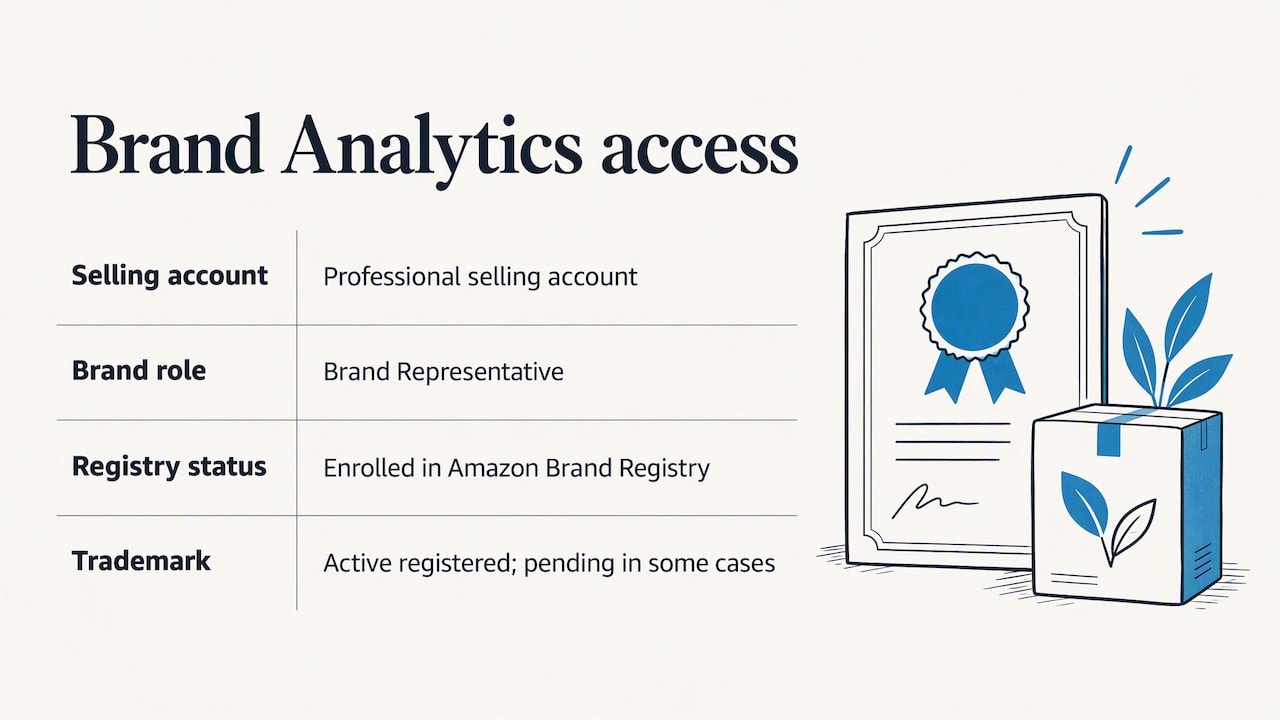
Access has two requirements, both from Amazon. You need a Professional selling account, and you need to be a Brand Representative for a brand that is enrolled in Amazon Brand Registry.
That second condition is where most new sellers get stuck. Brand Registry enrollment is built on trademarks. Amazon says it uses an active, registered trademark, and in some cases a pending application or registration can also be used. Amazon also points to its IP Accelerator program as a way to get a trademark.
If you are still working out whether your brand name is protectable, it is worth understanding the filing process before you commit to packaging and inventory. A trademark attorney can explain trademark registration help in plain terms, including why professional filing can save you rework later. Start that process early, because Brand Analytics is only one of several tools that unlock once you are enrolled.
If you work for a brand rather than own it
Employees and contractors do not need to be the trademark owner. Amazon’s guidance is that if you are employed by an enrolled brand, you ask the Rights Owner or another Administrator to assign you the Brand Representative selling role. Agencies and in-house marketers should request exactly that role rather than sharing a login.
Selling in more than one country
Brand Analytics data is tied to the marketplace. Amazon’s developer documentation notes that report availability varies by report and Amazon store, so a report you rely on in the US store may not appear in another. Check each marketplace you sell in rather than assuming parity.
How to open Brand Analytics in Seller Central
The path is short. Log in to Seller Central, select Brands, then choose Brand Analytics. From there you navigate its dashboards using the tabs.
If you do not see the Brands menu or the Brand Analytics option:
- Confirm your account is a Professional selling plan, not Individual.
- Confirm your brand shows as enrolled in Brand Registry.
- Ask an Administrator to check that your user has the Brand Representative role.
- Make sure you are in the marketplace where the brand is registered.
Those four checks solve nearly every missing-menu problem we hear about.
The reports inside Brand Analytics
Amazon lists search engagement and trending-term dashboards, plus Repeat Purchase Behavior, Demographics and Market Basket Analysis. The names shift slightly over time, so here is what each is for.
| Report | What it answers | Best used for |
|---|---|---|
| Top Search Terms | What do shoppers type, and who wins those searches? | Keyword research, listing copy, ad targeting |
| Search Query Performance | How does my brand perform at each step from impression to purchase? | Diagnosing weak titles, images, prices |
| Search Catalog Performance | How do my products perform across searches over a date range? | Spotting products that are visible but not converting |
| Repeat Purchase Behavior | Which of my items do customers buy again? | Subscription offers, replenishment, reorder planning |
| Market Basket Analysis | What else is bought with my product? | Bundles, cross-sells, inventory choices |
| Demographics | Who is buying? | Creative, messaging, audience targeting |
Search Catalog Performance
This report gives search engagement metrics such as impressions, clicks, cart adds and purchases for a date range you specify. Read it as a funnel. If a product gets plenty of impressions but few clicks, the main image, title or price is the likely issue. If it gets clicks but few cart adds, look at the detail page, reviews and price against alternatives.

Repeat Purchase Behavior
This report holds data on the quantity of repeated purchases of your items. For consumables and accessories, it tells you whether your product earns a second order. That informs how much inventory to hold, whether to offer multipacks, and how aggressively to chase new customers versus encouraging reorders.
The Amazon search terms report, explained
When people search for the Amazon search terms report, they usually mean the Top Search Terms dashboard. It gives a broad view of customer search activity across Amazon stores, listing keywords with the top three products, categories and brands associated with each one.
Two things make it different from the search term report in your ad console. First, it covers the whole store, not only searches that triggered your ads. Second, it shows who is winning each search, so you see the competitive picture rather than only your own results.
How to read a search term row
For every keyword, ask three questions:
- Does this fit my product? A high-ranking term that describes a different product is noise, however popular.
- Who owns it? If the top three products are all established brands with thousands of reviews, expect a hard fight. If the leaders are thin listings, there may be room.
- Is it already in my listing? Search your title, bullets and backend search terms for the phrase and its close variants.
This is a research tool, not a shopping list. A common mistake is exporting hundreds of terms and stuffing them into a listing. Pick the handful that describe your product accurately and work them in naturally.
Using Brand Analytics for listings
Amazon says sellers can use search terms to inform SEO and add keywords to product detail pages. Here is a workflow that keeps it manageable.
- Choose one product and its main search term.
- In Top Search Terms, pull 10 to 20 related terms that fit the product honestly.
- Group them: core description, use case, material or size, audience.
- Compare against your current title, bullets and description. Note what is missing.
- Rewrite one element at a time, starting with the title.
- Record the date and the change, then compare Search Catalog Performance for that product a few weeks later.
Changing everything at once makes it impossible to know what worked. One edit, one check.
Amazon’s own showcase quotes the co-founder of thefitguy saying that quarterly sales jumped over 40% after optimizing for the best search terms using the Search Terms and Search Query Performance dashboards. Treat it as one brand’s result, not a promise. Your category, price and reviews shape your outcome.
A worked example
Say you sell a stainless steel insulated water bottle. In Top Search Terms you find that a phrase describing a larger size dominates the data, while your listing only mentions the size in the image. Your Search Catalog Performance shows decent impressions but weak clicks. The fix is not a new product. It is putting that size phrase in the title and the first bullet, then checking whether clicks improve. That is the whole loop: observe, change, measure.
Using Brand Analytics for advertising
The same data feeds your ad strategy. Amazon notes that search terms can help uncover advertising opportunities. In practice:
- Find exact-match targets. Terms that describe your product closely and show you in the top three are candidates for tighter, higher-bid campaigns.
- Find gaps. Terms that fit your product but where you do not appear in the top three are candidates for broader testing at a modest budget.
- Find negatives. Terms that look relevant but attract products very different from yours can be excluded so you stop paying for the wrong clicks.
Beyond keywords, the funnel view helps you decide where money should go. If you are already winning clicks but not purchases, more ad spend only buys more disappointed visitors. Fix the page first. Before you scale, check your margins with our Amazon FBA fees guide, because search volume means little if the unit economics do not hold.
Market basket analysis on Amazon
Market Basket Analysis is the smallest report in the suite and one of the most practical. It displays the top three products customers most frequently purchase with yours, which Amazon positions as a way to inform inventory choices, virtual bundles and cross-marketing. The underlying data covers items most commonly purchased in combination with items in a customer’s basket at checkout.
Three ways to use it
- Bundle. If a phone case is often bought with a screen protector you also sell, test a bundle. Our guide to Amazon product bundling explains the rules and types.
- Extend the line. If the companion products are always someone else’s, you have found a product idea with built-in demand. Our Amazon FBA product research playbook shows how to vet it.
- Cross-promote. Mention the companion product in your A+ content, brand store or follow-up messaging, where policy allows.
A caution from experience: market basket data shows co-purchases, not why. Two products bought together might be complementary, or one might be a cheap add-on to hit a free-shipping threshold. Look at the actual products before you build anything.
A weekly routine that takes under an hour
Brand Analytics pays off through repetition, not one big audit. Here is a rhythm that works for a small brand.
Weekly (20 to 30 minutes)
- Check Top Search Terms for movement in your main terms.
- Scan Search Query Performance for your top queries: are impressions and clicks rising or falling?
- Log one change you will make this week.
Monthly (30 to 45 minutes)
- Review Search Catalog Performance for each product and flag the biggest funnel drop.
- Check Repeat Purchase Behavior to inform reorder quantities.
- Look at Market Basket Analysis for new bundle ideas.
Quarterly
- Revisit your keyword groups and listing copy against the latest data.
- Decide which products to expand, bundle or retire.
Keep a simple spreadsheet with the date, the report, the finding and the action. In six months it becomes the most valuable record your brand owns.
Common mistakes to avoid
- Chasing volume over fit. The biggest term is not always the right term.
- Treating the numbers as exact. The data comes from Amazon’s systems, but it is aggregated and relative, so use it to compare and prioritize, not to forecast to the unit.
- Changing too much at once. You lose the ability to learn from results.
- Ignoring seasonality. Compare like periods, not a holiday week against a quiet one.
- Skipping the basics. Brand Analytics will not rescue weak photos, a poor price position or thin reviews.
- Forgetting the marketplace. Data and report availability are tied to the store where your brand is registered.
Our perspective: data only helps if you act on it
We have spent years in the Amazon world, and the pattern is consistent. Sellers who win are rarely the ones with the most tools. They are the ones who ask a clear question, look at the right report, and change one thing. Brand Analytics is powerful because it is first-party: it reflects how real shoppers behave in the store you sell in.
That is why we teach it as part of a full system rather than as a standalone trick. Research the product, protect the brand, build the listing around real search language, price it with the fees in mind, then use the data every week to tighten it. Our Amazon FBA step-by-step playbook walks through that sequence, and our guide to finding products to sell on Amazon shows where Brand Analytics fits into product selection.
If you are new, do not wait for perfect data. Get the brand registered, open the dashboards, and practice reading one report well. Confidence comes from reps.
— Nathaniel
Go deeper with the full course
Reading about dashboards is one thing. Working through a whole Amazon process with someone who has done it is faster. Our Instant Course Access for Life gives you lifetime access to our training for a one-off $97, built around practical, real-world tested strategies.
If you want the walkthroughs, templates and step-by-step lessons in one place, get Instant Course Access for Life. You can also browse everything on our courses page first.
FAQ
Is Amazon Brand Analytics free?
Brand Analytics is a tool within Seller Central for eligible brands, and we are not aware of a separate fee for it. What you do need is a Professional selling account and Brand Registry enrollment. Check your Seller Central account for your current plan details.
How do I use Brand Analytics on Amazon if I am new?
Start with Top Search Terms. Pick one product, find five to ten accurate terms that describe it, and compare them with your listing. Change the title or bullets, then check Search Catalog Performance a few weeks later to see whether impressions, clicks and purchases moved.
What is the difference between Top Search Terms and my advertising search term report?
The advertising report covers searches that triggered your own ads. Top Search Terms gives a broad view of search activity across Amazon stores, including the top products, categories and brands for each keyword. Use both: one shows your results, the other shows the market.
Can I get Brand Analytics without a trademark?
Brand Registry generally relies on an active registered trademark, and in some cases a pending application. Without a qualifying trademark, you generally cannot enroll, so you cannot reach Brand Analytics. Review Amazon’s current Brand Registry requirements before you apply.
What does market basket analysis tell me?
It shows the top three products customers most often buy together with yours. Use it to test bundles, plan inventory and find companion product ideas, then verify each pairing by looking at the actual listings.
Sources
- Amazon Brand Analytics | Sell on Amazon
- What is Amazon Brand Analytics? | Sell on Amazon
- Analytics Reports | Amazon Selling Partner API documentation
- Understand Amazon’s Brand Benefits (PDF)